Chromebooks have become a staple device across the United States for education, remote work, and everyday browsing. Their simplicity and speed make them appealing, but many users still ask how to take a screenshot on a Chromebook when they first switch from Windows or macOS. Screenshot tools on ChromeOS are built directly into the system, require no downloads, and work consistently across models, making screen capture quick and reliable once you know the methods.
This in-depth guide explains every current way to capture your screen on a Chromebook, from keyboard shortcuts to touchscreen options. Whether you use a traditional laptop, a 2-in-1 device, or tablet mode, this article walks through each option clearly so you can save, share, and manage screenshots with confidence.
Table of Contents
Why Screenshot Skills Matter on Chromebooks
Screenshots are a core productivity feature, not just a convenience. Chromebook users rely on screen captures for many daily tasks, including:
- Saving receipts, confirmations, and invoices
- Sharing assignments or instructions with teachers and classmates
- Capturing error messages for troubleshooting
- Documenting work progress
- Creating visual notes and references
Because Chromebooks emphasize cloud-based workflows and collaboration, screenshots often replace printing or downloading files. Learning every capture method helps you work faster and avoid unnecessary steps.
Understanding the Chromebook Keyboard Layout
Before using screenshot shortcuts, it helps to understand one key difference between Chromebooks and other laptops. Chromebooks do not have a traditional function-key row. Instead, they include special system keys at the top of the keyboard.
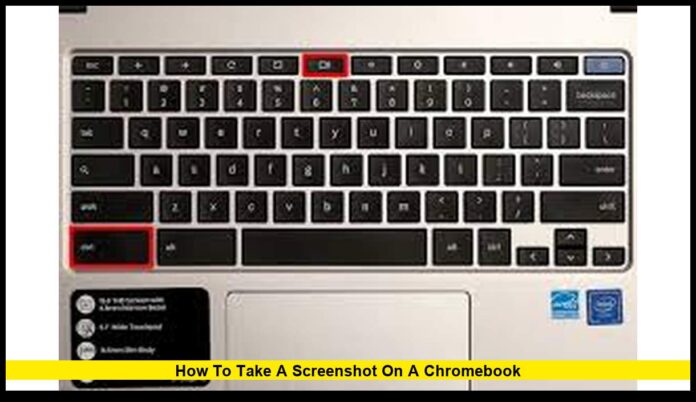
One of the most important for screenshots is the Show Windows key. This key looks like a rectangle with two vertical lines beside it. It is typically used to view all open windows, but it also plays a central role in screen capture shortcuts.
Taking a Full-Screen Screenshot
A full-screen screenshot captures everything currently visible on your display.
How it works:
- Press and hold Ctrl
- Press the Show Windows key
- Release both keys
Your screen will briefly flash to confirm the capture. The image is saved automatically as an image file in your Downloads folder.
This method is best when you need to record an entire webpage, presentation slide, or full desktop view without cropping later.
Capturing a Selected Area of the Screen
When you only need part of your screen, ChromeOS allows you to select a specific area.
Steps to follow:
- Press Ctrl + Shift + Show Windows
- Your cursor changes to a crosshair
- Click and drag to select the area you want
- Release to capture
This option is ideal for saving sections of articles, images, charts, or messages without including unnecessary background content.
Screenshotting a Single Window
If you are working with multiple apps or browser windows and want to capture just one, ChromeOS provides a dedicated shortcut.
How to do it:
- Press Ctrl + Alt + Show Windows
- Click on the window you want to capture
Only that window is saved, keeping the image clean and focused. This is especially useful for work presentations or support documentation.
Using the Screen Capture Tool from Quick Settings
ChromeOS also includes an on-screen tool that does not rely on keyboard shortcuts.
To access it:
- Click the clock in the bottom-right corner
- Select Screen Capture
- Choose full screen, partial screen, or window
- Capture the screenshot
This tool is helpful for beginners or users who prefer visual controls. It also works well on touchscreen devices.
Taking Screenshots in Tablet Mode
Many Chromebooks convert into tablets, removing access to the physical keyboard. In tablet mode, screenshots are taken using hardware buttons.
Steps:
- Press the Power button and Volume Down button at the same time
- Hold briefly, then release
The screenshot captures the full screen and saves it automatically. This method mirrors the process used on many Android devices, making it intuitive for mobile users.
Screenshots with External Keyboards
If you use an external keyboard that does not include Chromebook-specific keys, screenshots are still possible.
In most cases, the F5 key functions the same as the Show Windows key. You can replace it in screenshot shortcuts to achieve the same results.
Where Screenshots Are Saved and How to Find Them
All screenshots are saved by default in the Downloads folder. You can access them through the Files app.
Each screenshot includes a timestamp in the file name, which helps organize images chronologically. From the Files app, you can:
- Rename files
- Move screenshots into folders
- Upload them to cloud storage
- Delete unwanted images
Keeping your Downloads folder organized can save time if you take screenshots frequently.
Editing Screenshots on a Chromebook
After taking a screenshot, a small preview notification appears on the screen. Clicking it opens basic editing tools.
You can:
- Crop the image
- Draw or highlight areas
- Add notes or markings
For users who need more advanced editing, screenshots can be opened in photo-editing apps available on ChromeOS.
Screen Recording as an Alternative
Sometimes a still image is not enough. ChromeOS also supports screen recording through the same Screen Capture tool.
Screen recording is useful for:
- Tutorials
- Walkthroughs
- Demonstrating steps visually
- Capturing motion or animations
Recorded videos are saved alongside screenshots and can be shared or edited just like image files.
Common Screenshot Problems and Fixes
If screenshots fail to save or shortcuts stop working, try these solutions:
- Restart the Chromebook
- Check available storage space
- Update ChromeOS to the latest version
- Verify that the correct keys are being pressed
Most issues are temporary and resolved quickly with basic troubleshooting.
Best Practices for Screenshot Organization
Users who take screenshots daily benefit from creating a simple filing system. Consider sorting images by project, class, or purpose. Clear naming conventions also make files easier to locate later.
Moving screenshots to cloud storage ensures they remain accessible across devices and reduces local storage use.
Why Every Chromebook User Should Master Screenshots
Screenshots are one of the fastest ways to communicate visually. Mastering these tools helps students submit assignments, professionals collaborate remotely, and everyday users save important information without hassle.
Knowing exactly how to take a screenshot on a Chromebook ensures you are prepared in any situation, regardless of the device model or usage mode.
Looking Ahead for Chromebook Users
ChromeOS continues to evolve with usability improvements and new features, but screenshot tools remain a foundational part of the experience. As Chromebooks expand into more professional and creative workflows, efficient screen capture will remain an essential skill.
If you found this guide helpful or have a Chromebook tip worth sharing, join the conversation and check back for more practical updates.