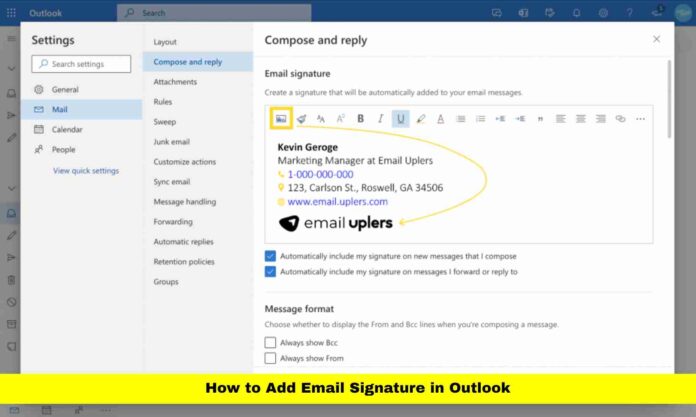
This article explains how to create, customize, and manage email signatures in Outlook across desktop, web, and mobile versions. It highlights best practices to keep signatures professional, consistent, and easy to update.
If you’re looking for how to add email signature in Outlook and want it done right the first time, this article has everything you need to set up, customize, and apply professional signatures across all your Outlook platforms. Email signatures add credibility and clarity to your messages, and Outlook makes this easy whether you use the desktop app, web version, or mobile interface. Here’s a detailed, step-by-step explanation to help you add and manage email signatures with confidence.
Table of Contents
Why Email Signatures Matter in Outlook
Email signatures are more than just names at the end of an email. They act as your professional identity in every message you send. A thoughtfully formatted signature can include your name, title, phone number, company website, and even logos or social links. When added correctly, signatures ensure every recipient knows who you are and how to reach you. Outlook lets you create multiple signatures and choose when to use them, making it perfect for personal and business communication.
Adding a Signature in New Outlook for Windows
One of the most common ways users interact with Outlook is through the New Outlook desktop application. Here’s how to create and insert a signature in this version:
To begin, open Outlook on your Windows computer. Go to the settings icon, often located at the top of the window, then choose your account and look for the “Signatures” section. Click the option to add a new signature. Give your signature a name so you can recognize it later. In the text box provided, type the information you want to display at the end of your emails and format it with fonts, colors, or even links to your website. Once your signature looks the way you want, save it. Now you can choose whether this signature should automatically appear on new messages and on replies or forwarded emails. If you leave those default boxes unchecked, your signature won’t auto-insert, but you can still manually select it when composing.
When creating your signature, think about what information your recipients will value most. Consistency in formatting and accurate contact details will make your messages appear polished and complete. You can update or change these details at any time from the same signature settings menu.
Using Signatures in Classic Outlook for Windows
If your Outlook version still uses the classic layout, the steps are similar but slightly different:
Start by opening a new email message. Look for the “Signature” button in the message window. When you click it, you’ll see an option to open the signatures menu. From there, choose “New” to create a fresh signature, then type a name for it so you know which one you’re editing. In the edit area, build your signature with the text and style you want. Once complete, associate this signature with your email account by selecting it for new emails and replies/forwards if you want it to be automatic.
Classic Outlook also allows you to insert a signature manually by selecting the signature button when composing any message. This is useful if you switch between different signatures depending on the context of your email.
Creating and Managing Signatures in Outlook on the Web
Outlook’s browser-based interface, often called Outlook on the web, works smoothly if you prefer not to use the desktop app. To set up a signature here:
First, sign into your Outlook account in your web browser. At the top of the page, find the settings icon. Under settings, locate the mail options and then choose “Compose and reply.” You’ll see a place for your email signature where you can type and format your content. After entering your details, pick whether this signature should automatically appear in new mail and in replies or forwards. Don’t forget to save your changes before exiting.
If you decide not to set signatures to appear automatically, you can still insert your signature manually while composing emails by using the “Signature” option in the message toolbar.
Organizing Multiple Signatures
Outlook gives you the flexibility to create more than one signature. This is helpful if you use the same email account for different roles or audiences. When you open the signature settings, you can add multiple signatures, name them clearly, and decide where each will apply. For example, you might have one signature for professional clients and another for quick internal messages.
After you create more than one, Outlook lets you select which one to apply as the default for new messages and replies. You can even switch between signatures manually when composing a message by choosing the one you prefer from the signature menu.
Formatting Tips for Professional Signatures
When designing your signature, keep these points in mind:
Use clear, readable fonts and appropriate sizes so recipients don’t have to zoom in to read basic information.
Include only necessary details like your full name, role, phone number, and website.
Avoid cluttering the signature with too many images, emoji, or long quotes.
If you include links to websites or social profiles, make sure they work when clicked.
For corporate use, a small logo adds brand identity without overwhelming the design.
Thoughtfully formatted signatures help establish your professional image while keeping messages easy to scan and understand.
Adding Images or Logos to Your Signature
Outlook supports adding visual elements like images or logos to your signature. Whether you’re on the web version or the desktop app, using the image option in the signature editor lets you insert pictures from your device. Once added, you can adjust the size so your logo fits neatly under your contact information. Just remember that oversized images may distract from your contact details, so keep graphics simple and appropriately sized.
Not all Outlook mobile apps support full visual signatures, so you may need to add images using the desktop or web version if visuals are important to your branding.
Setting Default Signatures for Replies and Forwards
Creating a signature is only half the task — deciding when it appears is the other half. Outlook allows you to choose different signatures for new messages and for replies or forwarded emails. In your signature settings, look for options that let you assign each of your created signatures to those categories. If you want consistent branding in all communications, select the same signature for both. If you prefer a simpler signature on replies, pick one that includes just your name and title.
If you pick “none” for default settings, your signature won’t auto-insert, but that gives you the option to manually choose it from the message toolbar every time you compose.
Mobile Outlook and Signature Setup
Outlook mobile apps work a bit differently. Although you can set a mobile signature, it generally appears as plain text without rich formatting or images. Open the Outlook app on your phone, go to settings, then find the signature section within your account settings. Enter your text, save it, and this signature will appear at the bottom of mobile messages. If you use both desktop and mobile versions, you might want to set up matching or complementary signatures on both platforms for consistency.
Because the mobile version has fewer formatting features, plan your signature text with simplicity in mind so it displays cleanly across devices.
Read Also :- Gmail Passwords Exposed Data Leak: What U.S. Users Need to Know Now.
Troubleshooting Signature Setup
At times, users may not see their signature settings, especially after updates. If your signature options seem missing or grayed out, it may be due to the version of Outlook you’re using. New Outlook versions sometimes reorganize menu options, so checking both the message toolbar and the main settings area helps. Restarting the app or clearing cache in your browser can also make signature settings reappear.
In rare cases, corporate policies or account restrictions may limit signature creation. If your account is managed by your organization, check with your IT admin to ensure signature features are enabled.
Best Practices for Signature Consistency
Always double-check that your signature appears correctly by sending a test email to yourself. Make adjustments if images appear too large or text wraps awkwardly. When you update your title, phone number, or other details, return to the signature settings to edit and save the changes so future emails remain accurate.
Keeping a consistent signature across devices and accounts ensures every email reflects your current information.
Summary of Signature Setup Steps
Here’s a quick recap of what you do:
Open your Outlook interface — desktop, web, or mobile.
Locate signature options in settings or under the message toolbar.
Add a new signature and name it clearly.
Enter and format your contact information.
Choose default behavior for new messages and replies.
Save your work and test it by composing a message.
These steps help you create professional signatures that improve communication and present your details clearly and consistently.
What signature have you created in Outlook, or do you customize signatures for different purposes? Share your experience and tips in the comments to help others optimize their email signatures too.
Read Also :- Google Change Gmail Address: How the New Update Reshapes Email Identity for U.S. Users.