If you’ve been searching for how to cancel YouTube TV, you’re not alone. Many U.S. users are choosing to cancel or pause their subscriptions following recent price increases and content changes. Whether you’re cutting costs or switching to another streaming platform, here’s everything you need to know — explained clearly and accurately.
Table of Contents
Why You Might Want to Cancel YouTube TV
YouTube TV, one of the most popular live TV streaming services in the United States, now costs $82.99 per month for its base plan. The service includes more than 100 channels, cloud DVR storage, and support for multiple devices.
However, in 2025, many subscribers began canceling due to:
- Price increases that made it more expensive than competitors like Sling TV or Hulu + Live TV.
- Occasional channel disputes, such as temporary removals of ESPN and other Disney-owned channels.
- Redundant subscriptions, as viewers turn to cheaper or more specialized streaming services.
If you’ve decided the service is no longer worth it, canceling is quick and straightforward — as long as you know where to look.
How to Cancel YouTube TV on a Computer
Here’s the most direct way to cancel your YouTube TV membership on your desktop browser:
- Go to the YouTube TV website: Open your browser and visit tv.youtube.com.
- Sign in: Make sure you’re logged into the Google account linked to your YouTube TV subscription.
- Access your account menu: Click your profile icon in the upper-right corner of the page.
- Select Settings: In the dropdown menu, click Settings.
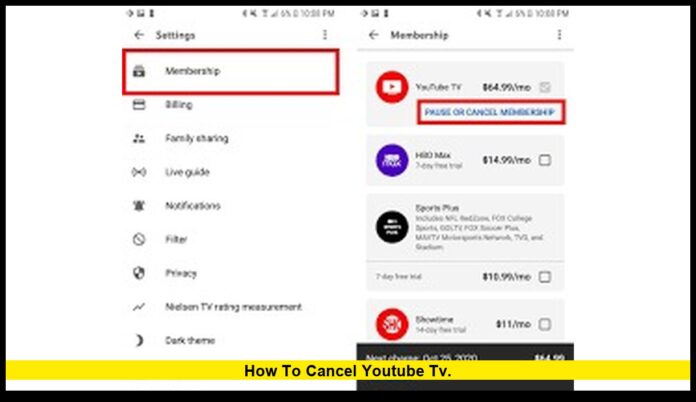
- Go to Membership: Choose the Membership option to see your current plan and add-ons.
- Click Manage next to your Base Plan.
- Choose Cancel Membership: When the prompt appears, select Cancel and confirm your choice.
After canceling, you’ll still have full access until the end of your current billing period.
How to Cancel YouTube TV on Mobile (Android or iPhone)
You can also cancel YouTube TV using a mobile browser or the app, depending on your device.
For Android Users:
- Open the YouTube TV app.
- Tap your profile photo → Settings → Membership.
- Tap Manage → Cancel membership.
For iPhone or iPad Users:
- Open your mobile browser (Safari or Chrome).
- Go to tv.youtube.com and sign in.
- Tap your profile icon → Settings → Membership.
- Tap Cancel and confirm.
Note: Cancellation cannot be done directly through the iOS YouTube TV app — you must use a browser.
Pause Instead of Canceling YouTube TV
If you’re not ready to completely cancel, you can pause your YouTube TV membership instead. This allows you to take a break without losing your account data, recordings, or preferences.
- Go to Settings → Membership → Manage → Pause membership.
- You can pause your account for 4 weeks to 6 months.
- During this pause, you won’t be charged.
- Once the pause ends, billing and service automatically resume.
| Action | Result |
|---|---|
| Cancel | Subscription ends after billing cycle; recordings expire after 21 days. |
| Pause | Account remains inactive but preserved; no billing until resumed. |
Pausing is a great option if you’re traveling, testing another service, or just taking a break from live TV.
What Happens After You Cancel YouTube TV
After completing cancellation, here’s what to expect:
- Access lasts until the billing cycle ends. You can still watch live TV and recordings until that date.
- Cloud DVR recordings expire after 21 days. Once expired, they can’t be recovered.
- Your account remains linked to Google. If you decide to resubscribe later, you can do so easily.
- Add-ons and premium channels (like Showtime or NFL Sunday Ticket) also end when your membership does.
- Promotions and discounts you previously had may not apply if you resubscribe in the future.
Common Cancellation Problems and Fixes
While the process is simple, some users encounter issues. Here are quick fixes:
- Can’t find the cancel option? Make sure you’re logged into the right Google account that pays for the subscription.
- Charged after canceling? Verify that you received an email confirmation of cancellation — otherwise, it didn’t process.
- Can’t cancel on iPhone? Use a web browser instead of the iOS app.
- Still seeing an upcoming billing date? That means your cancellation hasn’t gone through yet — try again or contact YouTube TV support.
Tips Before Canceling Your Subscription
Before you cancel, consider these quick tips:
- Download or record information about your DVR content before it expires.
- Check family sharing: If others in your household use the account, inform them before canceling.
- Look for discounts: Occasionally, YouTube TV offers temporary credits or reduced rates for returning subscribers.
- Explore alternatives: Compare with other streaming options to find one that fits your needs and budget.
Popular Alternatives in the U.S.:
| Service | Starting Price | Notable Channels |
|---|---|---|
| Sling TV | $40/month | ESPN, CNN, AMC |
| Hulu + Live TV | $76.99/month | ABC, FX, Disney+, ESPN+ |
| FuboTV | $79.99/month | FOX, NBC, CBS Sports |
| Philo | $28/month | AMC, Lifetime, Hallmark |
| DirecTV Stream | $84.99/month | CNN, NBC, TNT, Bravo |
Why Many Americans Are Canceling in 2025
The U.S. streaming market has changed dramatically this year. With inflation and rising subscription costs across all platforms, even loyal customers are reviewing their streaming bills.
YouTube TV’s premium pricing has made it less competitive compared to smaller, budget-friendly platforms. Additionally, many viewers now prefer on-demand services like Netflix, Peacock, and Paramount+ over live channel streaming.
Despite this, YouTube TV remains one of the best for sports and local channel coverage — so if you value those, it might still be worth keeping.
Final Thoughts
If you’ve been wondering how to cancel YouTube TV, now you know the full process. Canceling (or pausing) takes only a few clicks, and you retain access until your current billing cycle ends.
Whether you’re saving money, switching to another platform, or taking a streaming break, the decision is entirely in your hands.
Have you canceled YouTube TV recently? Share your experience or questions below and help others make informed choices.